
Best Productivity Chrome Extensions in 2026: Complete Guide
Discover the best productivity Chrome extensions in 2026 that save time, reduce distractions, and help you work smarter. Free and paid options for every professional
Read article → Get a Free Quote
Blog/Tech
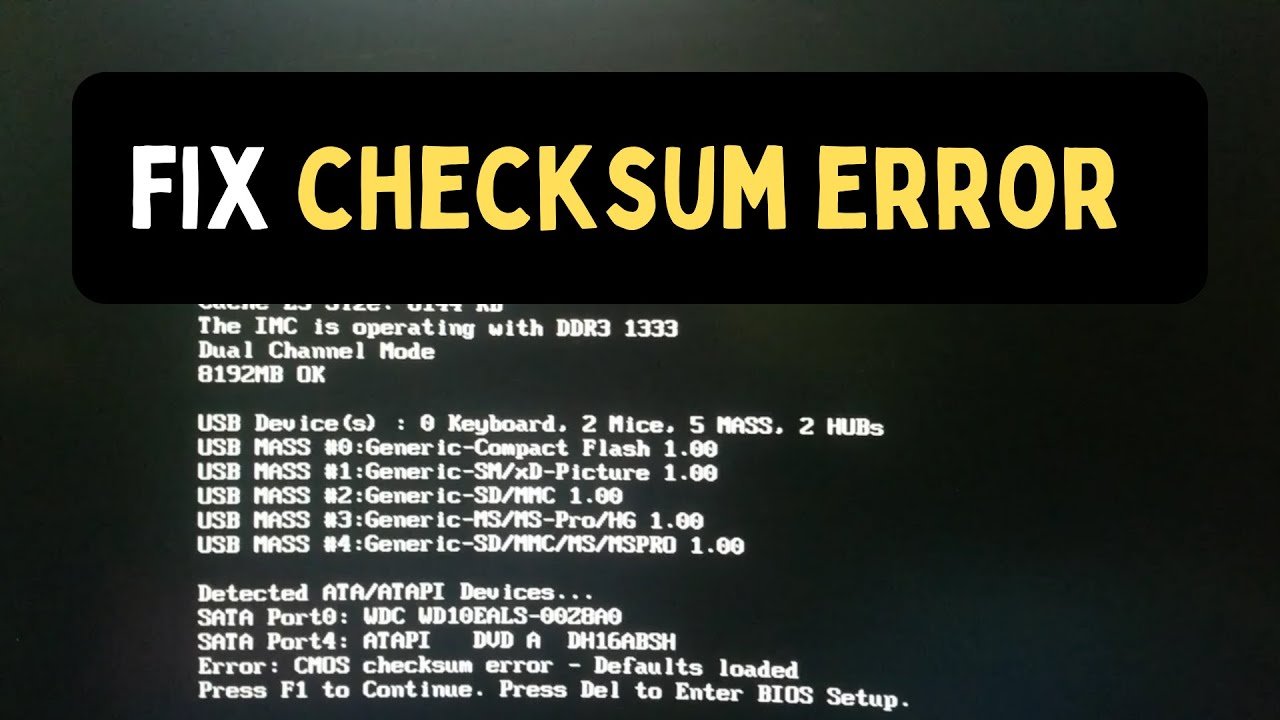
If you use a computer or the internet regularly, chances are you’ve encountered a “checksum error” message at some point — while downloading a file, installing software, or scanning a hard drive. For most people, this error is confusing and a little alarming because it’s not always clear what’s actually wrong.
In this article, we’ll break down exactly what a checksum error is, why it happens, the different types you might run into, and practical, step-by-step ways to fix it. This guide is written for everyday users, not just IT professionals, so you can diagnose and resolve the issue yourself.
A checksum is a mathematical value calculated from the contents of a file or piece of data. Think of it as a digital fingerprint. When a file is created, an algorithm (such as MD5, SHA-1, or SHA-256) processes its data and generates a unique code — this is the checksum.
When that same file is transferred — downloaded, copied, or sent over a network — the checksum is recalculated at the receiving end. If both checksums match, the file arrived intact and unaltered. If they don’t match, the system displays a “checksum error” or “checksum mismatch”.
In simple terms: a checksum is a built-in quality check that confirms no corruption occurred during data transfer or storage.
There are several common reasons a checksum error can occur:
If your internet connection drops or a download is interrupted midway, part of the file goes missing. This is one of the most frequent causes of a download checksum error.
If your hard drive, SSD, or USB drive has bad sectors, errors can occur while reading or writing data, resulting in a disk checksum error.
A weak or unstable internet connection can corrupt data packets during transfer, causing files sent over a network to become damaged.
Outdated drivers or buggy software can sometimes affect file integrity, leading to checksum mismatches.
Viruses can modify files, which changes their original checksum value and triggers an error when the system verifies it.
Defective RAM can corrupt data during processing — a hidden but real cause of recurring checksum errors.
Checksum errors can show up in several different contexts:
The simplest fix is to download the file again, especially if the first attempt was interrupted. Make sure you have a stable internet connection before starting.
If you’re repeatedly getting a download checksum error, restart your Wi-Fi router or switch to a wired connection. A weak signal is a common culprit.
On Windows, you can use the CHKDSK command to detect and repair bad sectors:
chkdsk C: /f /rThis command scans the drive and attempts to automatically fix errors it finds.
Perform a full system scan to rule out malware or viruses causing file corruption. Use a trusted antivirus tool and keep its database updated.
If the issue keeps recurring, test your memory using Windows Memory Diagnostic or MemTest86. Replacing faulty RAM modules can permanently resolve the problem.
Outdated drivers often cause compatibility issues. Keep your disk and network drivers, in particular, updated to their latest versions.
Sometimes the issue lies with the original source file. If possible, try downloading from another reliable website or mirror link.
To confirm file integrity, use tools like HashCheck, CertUtil (Windows), or md5sum (Linux/Mac). On Windows, the command looks like this:
certutil -hashfile filename.zip SHA256This generates the file’s hash, which you can then compare against the original published hash.
What does a checksum error mean? A checksum error means the calculated checksum of a file doesn’t match its original checksum, indicating the file was corrupted during transfer or storage.
Is a checksum error dangerous? On its own, it’s not a virus or threat — it’s simply an indicator that a file is corrupted. However, if it happens repeatedly, it could point to a hardware issue or malware infection.
What’s the difference between a CRC error and a checksum error? A CRC (Cyclic Redundancy Check) is actually a type of checksum. Every CRC error is essentially a checksum mismatch — the term just refers to the specific verification method used.
Does a checksum error only happen during downloads? No. It can also result from disk corruption, network issues, faulty RAM, or malware — it’s not limited to downloads alone.
What’s the easiest way to verify a checksum? Windows users can use the CertUtil command, while Linux/Mac users can use md5sum or sha256sum to easily verify a file’s hash.
A checksum error is a common but fixable issue, usually caused by incomplete downloads, storage problems, or network issues. By following the steps outlined in this guide, you can not only fix the error but also take preventive measures to avoid it happening again in the future.
If you’re experiencing this error frequently, pay close attention to your hardware health, internet connection, and software updates — in most cases, the root cause lies in one of these three areas.

Discover the best productivity Chrome extensions in 2026 that save time, reduce distractions, and help you work smarter. Free and paid options for every professional
Read article →
Need SEO services in UAE? Learn what's included, how pricing works, and how to rank in Dubai and Abu Dhabi on Google and AI search.
Read article →
What is SERP insight link insertion and how does it work? This complete guide explains everything — from finding the right pages to placing contextual links that actually move your Google rankings in 2026.
Read article →Join our community and keep up with everything happening in the tech world. We'll deliver insights, news, and tips straight to your inbox.