
SEO Services in UAE: What They Include, What They Cost, and How to Choose the Right Partner
Need SEO services in UAE? Learn what's included, how pricing works, and how to rank in Dubai and Abu Dhabi on Google and AI search.
Read article → Get a Free Quote
Blog/SEO
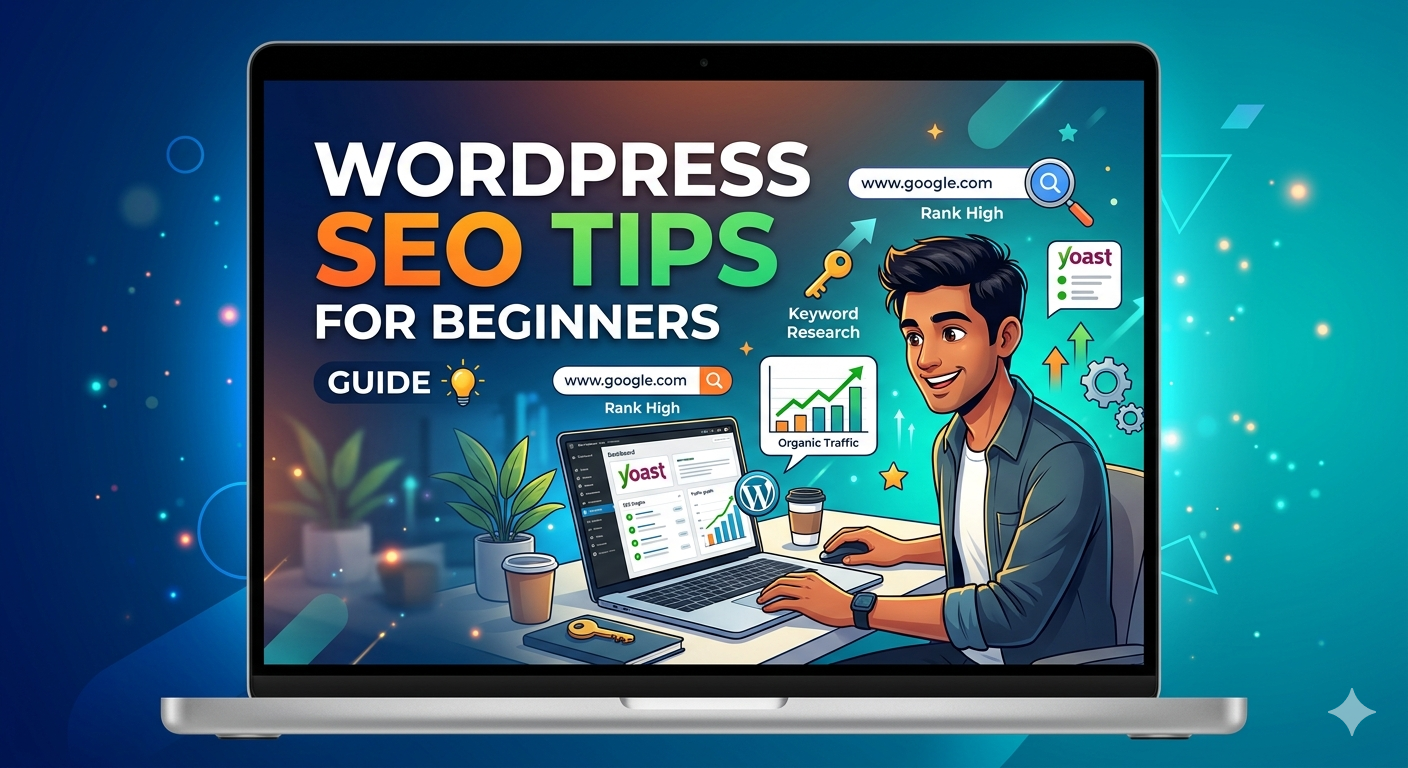
If you just launched a WordPress website and want to rank on Google, here is the truth: WordPress is one of the most SEO-friendly platforms available but only if you set it up correctly from the start.
Out of the box, WordPress leaves many critical SEO settings unconfigured. This guide covers every essential WordPress SEO tip for beginners from your very first settings to ongoing optimization — so your site can start climbing Google’s rankings as quickly as possible in 2026.
Google processes over 8.5 billion searches every single day. Every one of those searches is a potential customer looking for a business, product, or service like yours.
Without proper WordPress SEO, your website is essentially invisible — no matter how beautiful the design or how good your content is. With the right SEO setup, your WordPress site can attract targeted organic traffic 24 hours a day, completely free.
The good news: you do not need to be a developer or technical expert to do SEO on WordPress. Following this beginner-friendly guide step by step will put you ahead of the majority of WordPress websites online today.
Before writing a single blog post, get your WordPress SEO settings right.
Go to Settings → Reading in your WordPress dashboard. Make sure the checkbox labeled “Discourage search engines from indexing this site” is unchecked. Many new WordPress sites have this enabled by default — leaving it on means Google cannot index your site at all.
Go to Settings → Permalinks and select “Post name” as your URL structure.
This changes your URLs from ugly formats like yoursite.com/?p=123 to clean, readable formats like yoursite.com/wordpress-seo-tips-for-beginners — which Google strongly prefers.
This is one of the most important WordPress SEO settings to configure before publishing any content.
Go to Settings → General and make sure your site title clearly reflects what your business does. Include your primary keyword or service naturally in the tagline where possible.
The single most important tool for WordPress SEO for beginners is a dedicated SEO plugin. These plugins handle technical SEO tasks automatically and give you full control over how your content appears in search results.
Rank Math SEO — Currently the most powerful free WordPress SEO plugin available. It includes built-in schema markup, keyword tracking, Google Search Console integration, and AI-powered suggestions. Highly recommended for beginners and advanced users alike.
Yoast SEO — The most widely used WordPress SEO plugin with an excellent beginner-friendly interface. The free version covers all essential SEO needs including meta titles, descriptions, XML sitemaps, and readability analysis.
All in One SEO — A solid alternative with a clean dashboard and good automation features for beginners.
For most beginners, Rank Math or Yoast SEO is the right choice. Install one — not both — and follow the setup wizard carefully.
This is the heart of on-page SEO for WordPress. Every piece of content you publish should target one specific keyword that your ideal customer is searching for.
Before writing, research what your audience actually searches for. Use free tools like:
For beginners, focus on long-tail keywords — specific phrases of three to five words with lower competition. For example, instead of targeting “SEO” (extremely competitive), target “WordPress SEO tips for beginners” (far more achievable).
Once you have your target keyword, place it in these critical locations:
| Location | Example |
|---|---|
| Page title (H1) | WordPress SEO Tips for Beginners |
| First 100 words | Mention naturally in opening paragraph |
| At least one H2 heading | Step-by-step WordPress SEO guide |
| Meta title | WordPress SEO Tips for Beginners: Complete Guide 2026 |
| Meta description | Summarize with keyword included |
| URL slug | /wordpress-seo-tips-for-beginners |
| Image alt text | wordpress-seo-tips-for-beginners |
Avoid keyword stuffing — use the keyword naturally where it fits. Google penalizes content that forces keywords unnaturally.
In 2026, Google’s ranking algorithm heavily prioritizes content that demonstrates E-E-A-T: Experience, Expertise, Authoritativeness, and Trustworthiness. This is especially important for any business or service-related content.
Experience: Share real examples from your own work. Include case studies, screenshots, and specific results you have achieved. First-hand experience signals authenticity to Google.
Expertise: Write in-depth content that goes beyond surface-level information. Cover topics thoroughly and answer follow-up questions your readers might have.
Authoritativeness: Add an author bio to every post. Include credentials, years of experience, and links to your professional profiles. Google evaluates who is writing content — not just what is written.
Trustworthiness: Keep your information accurate and up to date. Include your business name, address, and contact information on your website. Use HTTPS (SSL certificate). Link to reputable external sources where appropriate.
Content that meets these E-E-A-T standards consistently outperforms thin, generic content regardless of how well it is technically optimized.
On-page SEO for WordPress refers to the optimizations you make directly within each page or post. Here is a complete checklist:
Your meta title is what appears as the clickable headline in Google search results. Make it:
Your SEO plugin (Rank Math or Yoast) lets you set this independently from your actual post title.
The meta description appears below your title in search results. It does not directly affect rankings but significantly impacts click-through rates. Write a description that:
Use a clear hierarchy of headings throughout your content:
This structure helps both Google and readers understand how your content is organized.
Every image you upload to WordPress should be optimized:
wordpress-seo-tips.jpg not IMG_4821.jpg)Internal links — links from one page of your website to another — are one of the most underused but powerful WordPress SEO tips for beginners.
Internal links help Google discover and understand all your pages, distribute ranking authority throughout your site, and keep visitors engaged longer by guiding them to related content.
For example, if you are reading this guide on WordPress SEO, you might also find value in understanding why your business needs a website and whether SEO actually works for small businesses.
Add at least two to three internal links in every piece of content you publish.
Page speed is a confirmed Google ranking factor — and it significantly affects user experience. A slow WordPress website will rank lower and lose visitors before they even read your content.
Choose a fast hosting provider — Your hosting is the foundation of your site speed. Cheap shared hosting often delivers poor performance. Consider managed WordPress hosting for significantly better speed.
Install a caching plugin — WP Rocket (premium) or W3 Total Cache (free) dramatically improve loading times by serving cached versions of your pages instead of generating them dynamically every time.
Use a Content Delivery Network (CDN) — Cloudflare’s free CDN delivers your website’s assets from servers closest to each visitor, reducing loading times globally.
Compress and resize images — Images are the most common cause of slow WordPress websites. Always compress images before uploading and use modern formats like WebP where possible.
Minimize plugins — Every active plugin adds loading overhead. Regularly audit your plugins and remove any that are not actively contributing value.
Use Google PageSpeed Insights (free) to test your current speed and get specific recommendations for improvement.
Over 60% of all web traffic now comes from mobile devices. Google uses mobile-first indexing — meaning it primarily evaluates your mobile site when determining rankings.
Choose a responsive theme — Most modern WordPress themes are responsive by design, meaning they automatically adjust to different screen sizes. Before choosing a theme, verify it is mobile-friendly.
Test your site — Use Google’s Mobile-Friendly Test tool to check how your site appears on mobile devices and identify any issues.
Check touch elements — Buttons and links should be large enough to tap comfortably on a small screen. Text should be readable without zooming.
An XML sitemap is a file that lists all the pages on your website, helping Google discover and index your content faster. Your SEO plugin generates this automatically.
With Rank Math or Yoast SEO installed, your sitemap is generated automatically at a URL like yoursite.com/sitemap.xml.
Once you have confirmed it exists, submit it to Google Search Console:
This tells Google exactly what pages exist on your site and ensures they are crawled and indexed as quickly as possible.
Google Search Console is a free tool that every WordPress site owner must use. It shows you exactly how Google sees your site — which keywords you rank for, which pages are indexed, and any technical errors that need fixing.
All the technical WordPress SEO settings in the world will not rank your site if you do not publish helpful, consistent content. Content is still the single most important ranking factor in 2026.
Publish regularly — Even one high-quality post per week is better than sporadic bursts of content. Google rewards sites that publish consistently over time.
Answer real questions — Use tools like Google’s “People Also Ask” and Answer the Public to find exactly what questions your target audience is asking. Answer those questions thoroughly and you will rank for them.
Target a content cluster — Instead of publishing random topics, build clusters of related content around your main services. For example, if you offer digital marketing services, create a pillar page on digital marketing and support it with blog posts on SEO, social media, content marketing, and paid ads — all interlinked.
Update old content — Regularly revisiting and updating older posts with new information signals to Google that your content is current and maintained.
Use this checklist every time you publish new content:
| Plugin | Best For | Cost |
|---|---|---|
| Rank Math | Complete SEO control, schema, AI suggestions | Free / Premium |
| Yoast SEO | Beginners, content readability analysis | Free / Premium |
| All in One SEO | Simple setup, good automation | Free / Premium |
| WP Rocket | Page speed and caching | Premium only |
| Smush | Image compression | Free / Premium |
| Cloudflare | CDN and security | Free / Premium |
What is the best WordPress SEO plugin for beginners? Rank Math and Yoast SEO are both excellent choices for beginners. Rank Math offers more features in the free version, including built-in schema markup and Google Search Console integration. Yoast has a slightly simpler interface that some beginners find easier to follow. Install one and stick with it — switching plugins later can cause issues.
How long does it take for WordPress SEO to show results? For long-tail, low-competition keywords, you can begin seeing rankings within 4 to 12 weeks of publishing optimized content. More competitive keywords typically take 3 to 6 months. Consistency is the most important factor — sites that publish regularly and maintain their technical SEO see results significantly faster than those that publish sporadically.
Do I need to know coding to do SEO on WordPress? No — modern WordPress SEO requires zero coding knowledge. Your SEO plugin handles the technical aspects automatically, and the on-page optimizations described in this guide can all be done through WordPress’s standard editor and plugin settings.
How do I improve WordPress SEO for an existing website? Start by installing an SEO plugin if you do not have one, fixing your permalink structure, submitting your sitemap to Google Search Console, and then systematically optimizing each existing page with proper meta titles, descriptions, and keyword placement. Improving your site speed and adding internal links between pages will also provide immediate benefits.
What is the most important WordPress SEO setting? The permalink structure is often the most overlooked but impactful setting. Changing it to “Post name” creates clean, keyword-rich URLs that both Google and users prefer. Do this before publishing any content — changing it after you have live pages requires setting up redirects to avoid broken links.
How many keywords should I target per page? Focus on one primary keyword per page and two to five related secondary keywords that naturally support the primary topic. Trying to rank one page for too many unrelated keywords dilutes its focus and confuses Google about what the page is actually about.
WordPress SEO for beginners does not have to be overwhelming. By following these steps systematically — configuring your settings correctly, installing a good plugin, optimizing every piece of content, and publishing consistently — you give your website a genuine opportunity to rank on Google and attract organic traffic.
The businesses and blogs that win at SEO in 2026 are not necessarily the ones with the biggest budgets. They are the ones that understand what Google wants — helpful, expert, trustworthy content — and deliver it consistently over time.
If you want professional help implementing these WordPress SEO tips and getting your website ranking faster, contact Nextechforce for a free SEO consultation. We help small businesses and startups build WordPress websites that rank, attract customers, and grow — from the ground up.

Need SEO services in UAE? Learn what's included, how pricing works, and how to rank in Dubai and Abu Dhabi on Google and AI search.
Read article →
What is SERP insight link insertion and how does it work? This complete guide explains everything — from finding the right pages to placing contextual links that actually move your Google rankings in 2026.
Read article →
Wondering if SEO works for small businesses? Discover the honest truth, real data, and step-by-step strategy to rank on Google without a big budget.
Read article →Join our community and keep up with everything happening in the tech world. We'll deliver insights, news, and tips straight to your inbox.